If you have explored IPTV for more than five minutes, you have seen the term M3U. It is the file format at the heart of countless streaming setups, yet it sounds far more technical than it actually is. This guide demystifies the M3U playlist and the M3U link, shows how they power online TV channels, and explains how to use them responsibly.
What is an M3U file?
An M3U file is simply a playlist — a plain text list that tells a media player where to find audio or video streams and what to call them. The name comes from “MP3 URL,” because the format was originally created for music playlists in the late 1990s. Today the same format is used to organize live TV streams.
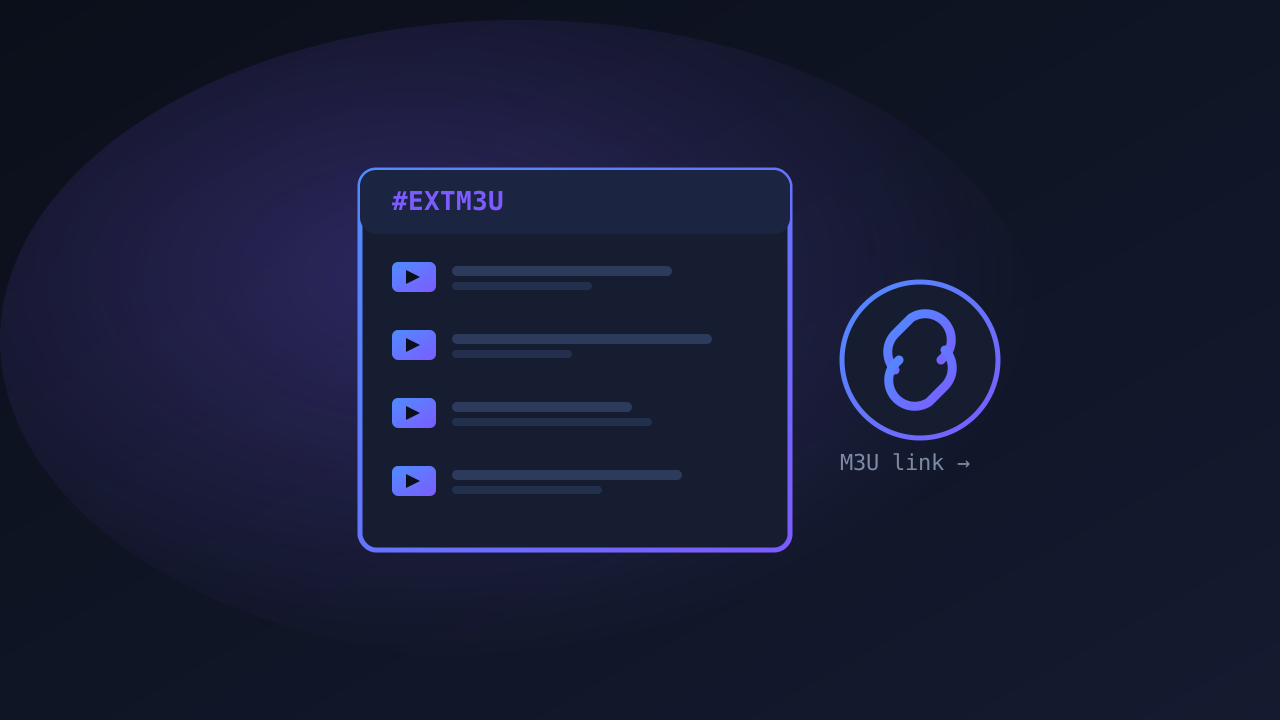
Open an M3U file in a text editor and you’ll see something readable like this:
#EXTM3U
#EXTINF:-1 tvg-name="News One" group-title="News",News One
http://example-stream-server.com/news-one/index.m3u8
#EXTINF:-1 tvg-name="Sports HD" group-title="Sports",Sports HD
http://example-stream-server.com/sports-hd/index.m3u8
Each channel has two lines: one describing it (name, logo, category) and one pointing to the actual stream. A modern variant called M3U8 is the same idea encoded in UTF-8, which is why you’ll see both extensions.
What is an M3U link?
Rather than emailing a giant file every time the lineup changes, most services give you an M3U link — a single URL that always points to your up-to-date playlist. Paste that link into a compatible app and it pulls the current channel list automatically. When the provider adds or removes channels, your app reflects the change the next time it refreshes.
That convenience is exactly why M3U links became the standard way to deliver streaming TV services to third-party players.
M3U vs Xtream Codes: what’s the difference?
You’ll often see these two side by side:
| M3U / M3U link | Xtream Codes API | |
|---|---|---|
| What you enter | A single playlist URL | A server URL + username + password |
| Channel logos & guide | Sometimes limited | Usually richer (EPG, categories) |
| Best for | Quick, simple setups | Apps that support a full guide |
Both ultimately deliver the same streams. Xtream Codes is just a login-based way to fetch the playlist and program guide together, which is why apps like TiviMate often prefer it.
How to load an M3U playlist into an app
The exact steps vary by app, but the pattern is always similar:
- Open your player (for example, a streaming app like TiviMate).
- Choose Add playlist and select M3U URL (or Xtream Codes).
- Paste the M3U link your service gave you.
- Optionally add an EPG / program guide URL so you get a TV grid.
- Let the app load — your channels appear, ready to watch on your device or TV box.
What does “premium M3U” mean?
A premium M3U is marketing shorthand for a paid playlist that promises extras: more channels, HD/4K quality, better uptime, and a fuller program guide. The phrase itself tells you nothing about quality or legality — it’s a label anyone can use.
If you’re researching providers that offer M3U-based access, directories such as Morsar TV, IPTV Morsar and IPTV Lite can be a starting point — but verify licensing and read the terms before paying for anything.
Common M3U problems and fixes
- Playlist won’t load: double-check the URL for typos and make sure your subscription is active.
- Channels buffer constantly: usually a bandwidth issue — see our 4K and streaming quality guide.
- No program guide: you likely need to add a separate EPG URL, or switch to an Xtream Codes login that bundles the guide.
- Some channels dead: source servers go up and down; a reputable provider keeps theirs stable.
The bottom line
An M3U playlist is nothing more than a text list of channels, and an M3U link is a convenient URL that keeps that list current. They’re the plumbing behind a huge share of IPTV and streaming setups. Now that you understand the format, learn how to load it into TiviMate, make sure you’re using a reputable, licensed provider, and pick the best device to watch on.